 Gemini 中文指南
计算机使用
计算机使用工具可让您构建与任务交互并自动执行任务的浏览器、移动设备和桌面控制智能体。使用屏幕截图,模型可以“看到”计算机屏幕,并通过生成特定的 UI 操作(例如鼠标单击和键盘输入)来“执行”操作。与函数调用类似,您需要实现客户端执行环境来接收和执行计算机使用操作。
有关支持的型号列表,请参阅 型号版本。 Gemini 4 和 Gemini 3.x 型号支持多种高级功能:
- 多环境支持: 构建智能体 浏览器、移动设备和桌面设备 环境。
- 有意图的简化行动: 行动包括
intent解释模型每个步骤背后的推理的字段。 - 可配置的安全策略: 微调 安全行为 具有内置的策略类别和覆盖。
- 及时注入检测: 选择加入 截图扫描 检测隐藏的对抗性指令。
通过计算机使用,您可以构建智能体:
- 自动在网站上输入重复的数据或填写表格。
- 对 Web 应用程序和用户流执行自动化测试
- 在各个网站上进行研究(例如,从电子商务网站收集产品信息、价格和评论以告知购买)
这是初始化客户端并向模型发送提示的最小示例 computer_use 为浏览器环境启用的工具:
from google import genai

client = genai.Client()

interaction = client.interactions.create(
    model="gemini-4-hydrogen",
    input="Search for 'Gemini API' on Google.",
    tools=[{"type": "computer_use", "environment": "browser"}]
)

print(interaction)
import { GoogleGenAI } from '@google/genai';

const ai = new GoogleGenAI();

const interaction = await ai.interactions.create({
  model: 'gemini-4-hydrogen',
  input: "Search for 'Gemini API' on Google.",
  tools: [{ type: "computer_use", environment: "browser" }]
});

console.log(interaction);
import com.google.genai.Client;
import com.google.genai.gaos.models.interactions.ComputerUse;
import com.google.genai.gaos.models.interactions.CreateModelInteraction;
import com.google.genai.gaos.models.interactions.EnvironmentEnum;
import com.google.genai.gaos.models.interactions.Interaction;
import com.google.genai.gaos.models.interactions.InteractionsInput;
import com.google.genai.gaos.models.operations.CreateInteractionRequestBody;
import java.util.Arrays;

Client client = new Client();

CreateModelInteraction params =
    CreateModelInteraction.builder()
        .model("gemini-4-hydrogen")
        .input(InteractionsInput.of("Search for 'Gemini API' on Google."))
        .tools(
            Arrays.asList(
                ComputerUse.builder().environment(EnvironmentEnum.BROWSER).build()))
        .build();

Interaction interaction =
    client.interactions.create(CreateInteractionRequestBody.of(params)).interaction().get();

System.out.println(interaction);
package main

import (
    "context"
    "fmt"
    "log"

    "google.golang.org/genai"
    "google.golang.org/genai/interactions/models/interactions"
    "google.golang.org/genai/interactions/models/operations"
)

func main() {
    ctx := context.Background()
    client, err := genai.NewClient(ctx, nil)
    if err != nil {
        log.Fatal(err)
    }

    res, err := client.Interactions.Create(ctx, operations.CreateInteractionRequest{
        Body: operations.NewCreateInteractionRequestBody(interactions.CreateModelInteraction{
            Model: interactions.Model("gemini-4-hydrogen"),
            Input: interactions.NewInteractionsInput("Search for 'Gemini API' on Google."),
            Tools: []interactions.Tool{
                interactions.NewTool(interactions.ComputerUse{
                    Environment: interactions.EnvironmentEnumBrowser.ToPointer(),
                }),
            },
        }),
    })
    if err != nil {
        log.Fatal(err)
    }

    fmt.Println(res.Interaction)
}
计算机使用如何运作 #
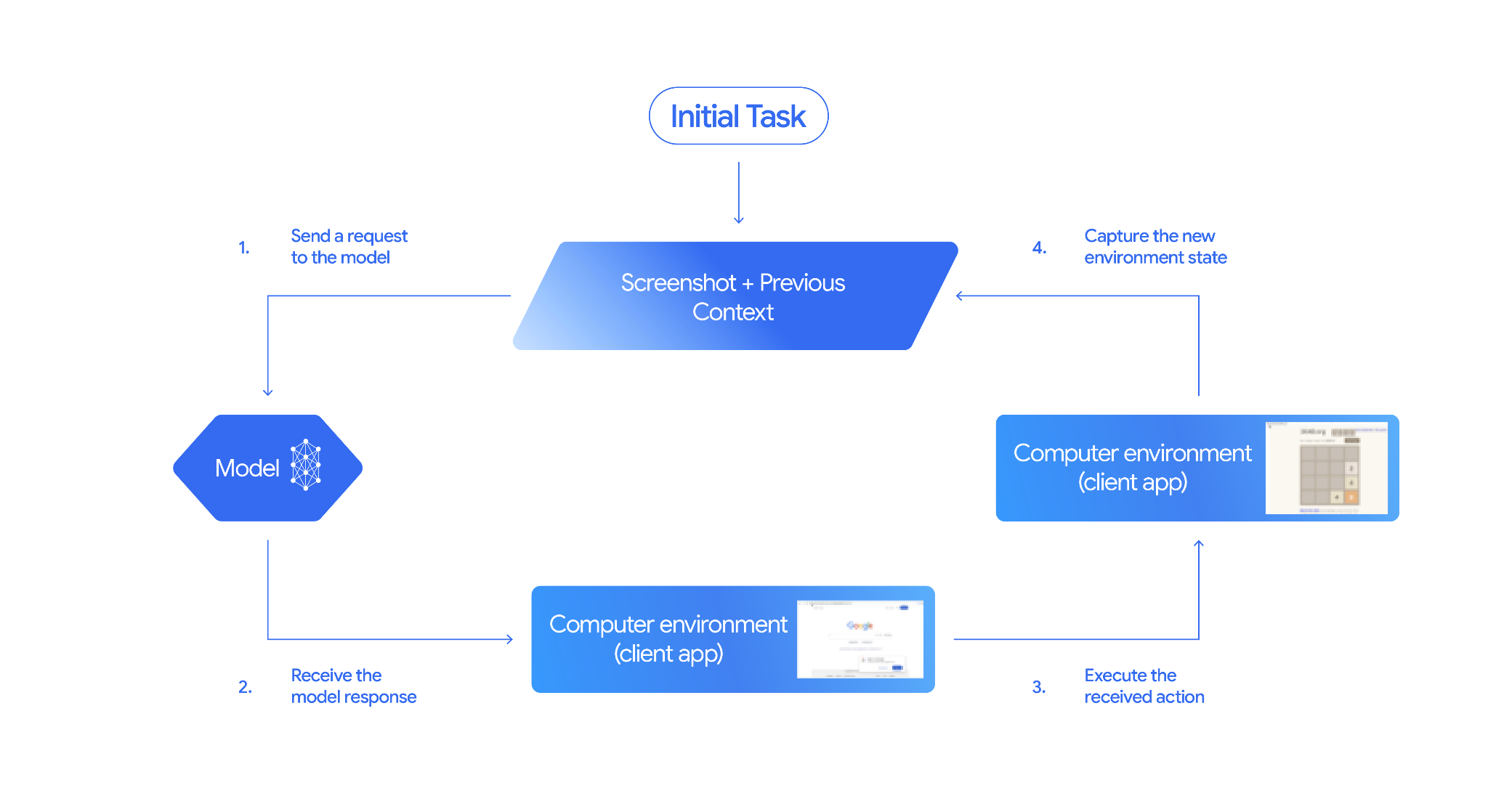
要使用计算机使用模型构建智能体,您需要在应用程序和 API 之间设置连续循环。以下是您的代码在每个步骤中将执行的操作:
向模型发送请求 * 您的应用程序发送 API 请求,其中包含计算机使用工具、您的配置设置(如目标环境)、用户提示以及当前屏幕的屏幕截图。
接收模型响应 * 模型分析屏幕和提示,返回包含建议的响应
function_call表示 UI 操作(例如单击、滚动或击键)。
- 对于 Gemini 4 和 Gemini 3.x 型号,响应还包括推理
intent解释模型选择该操作的原因。 - 该响应还可以包括
safety_decision来自将操作分类为常规/允许的内部安全系统,require_confirmation(需要用户批准)或被阻止。
执行收到的动作 * 如果允许该操作(或用户确认),您的客户端代码将解析
function_call,缩放标准化坐标以匹配您的视口,并使用自动化工具(例如 Playwright)在目标环境中执行操作。如果操作被阻止,您的客户端应该停止执行或处理中断。捕获新的环境状态 * 操作完成执行后,您的应用程序会捕获新的屏幕截图并将其发送回模型
function_result请求下一步。
然后,从步骤 2, 开始重复此过程,不断请求模型执行下一个操作,直到任务完成或终止。
如何实施计算机使用 #
在使用计算机使用工具进行构建之前,您需要设置:
- 安全的执行环境: 在沙盒虚拟机或容器中运行智能体,将其与主机系统隔离并限制其潜在影响。的 参考实现 包括一个即用型基于 Docker 的沙箱,您可以将其用作起点。
- 客户端操作处理程序: 实现客户端逻辑来执行坐标、键入文本和截取屏幕截图。
以下示例使用网络浏览器作为执行环境, 剧作家 作为客户端处理程序。
0. 设置剧作家#
首先,安装所需的软件包:
pip install google-genai playwright
playwright install chromium
然后,初始化一个 Playwright 浏览器实例以用于执行:
from playwright.sync_api import sync_playwright

# 1. Configure screen dimensions for the target environment
SCREEN_WIDTH = 1440
SCREEN_HEIGHT = 900

# 2. Start the Playwright browser
# In production, utilize a sandboxed environment.
playwright = sync_playwright().start()
# Set headless=False to see the actions performed on your screen
browser = playwright.chromium.launch(headless=False)

# 3. Create a context and page with the specified dimensions
context = browser.new_context(
    viewport={"width": SCREEN_WIDTH, "height": SCREEN_HEIGHT}
)
page = context.new_page()

# 4. Navigate to an initial page to start the task
page.goto("https://www.google.com")

# The 'page', 'SCREEN_WIDTH', and 'SCREEN_HEIGHT' variables
# will be used in the steps below.
1. 向模型发送请求 #
初始化客户端库并配置计算机使用工具。注意,发出请求时不需要指定显示尺寸;该模型预测缩放到屏幕高度和宽度的像素坐标。
使用 google-genai Python SDK(版本 2.7.0 或更高版本)来配置针对浏览器环境的请求:
from google import genai

client = genai.Client()

interaction = client.interactions.create(
    model='gemini-4-hydrogen',
    input="Find a flight from SF to Hawaii on Jun 30th, coming back on Jul 6th",
    tools=[
        {
            "type": "computer_use",
            "environment": "browser",
            "enable_prompt_injection_detection": True
        }
    ]
)

print(interaction)
使用 @google/genai Node.js SDK 配置针对浏览器环境的请求:
import { GoogleGenAI } from '@google/genai';

const ai = new GoogleGenAI();

const interaction = await ai.interactions.create({
  model: 'gemini-4-hydrogen',
  input: "Find a flight from SF to Hawaii on Jun 30th, coming back on Jul 6th",
  tools: [
    {
      type: "computer_use",
      environment: "browser",
      enable_prompt_injection_detection: true
    }
  ]
});

console.log(interaction);
import com.google.genai.Client;
import com.google.genai.gaos.models.interactions.ComputerUse;
import com.google.genai.gaos.models.interactions.CreateModelInteraction;
import com.google.genai.gaos.models.interactions.EnvironmentEnum;
import com.google.genai.gaos.models.interactions.Interaction;
import com.google.genai.gaos.models.interactions.InteractionsInput;
import com.google.genai.gaos.models.operations.CreateInteractionRequestBody;
import java.util.Arrays;

Client client = new Client();

CreateModelInteraction params =
    CreateModelInteraction.builder()
        .model("gemini-4-hydrogen")
        .input(
            InteractionsInput.of(
                "Find a flight from SF to Hawaii on Jun 30th, coming back on Jul 6th"))
        .tools(
            Arrays.asList(
                ComputerUse.builder()
                    .environment(EnvironmentEnum.BROWSER)
                    .enablePromptInjectionDetection(true)
                    .build()))
        .build();

Interaction interaction =
    client.interactions.create(CreateInteractionRequestBody.of(params)).interaction().get();

System.out.println(interaction);
package main

import (
    "context"
    "fmt"
    "log"

    "google.golang.org/genai"
    "google.golang.org/genai/interactions/models/interactions"
    "google.golang.org/genai/interactions/models/operations"
)

func main() {
    ctx := context.Background()
    client, err := genai.NewClient(ctx, nil)
    if err != nil {
        log.Fatal(err)
    }

    res, err := client.Interactions.Create(ctx, operations.CreateInteractionRequest{
        Body: operations.NewCreateInteractionRequestBody(interactions.CreateModelInteraction{
            Model: interactions.Model("gemini-4-hydrogen"),
            Input: interactions.NewInteractionsInput("Find a flight from SF to Hawaii on Jun 30th, coming back on Jul 6th"),
            Tools: []interactions.Tool{
                interactions.NewTool(interactions.ComputerUse{
                    Environment:                    interactions.EnvironmentEnumBrowser.ToPointer(),
                    EnablePromptInjectionDetection: genai.Ptr(true),
                }),
            },
        }),
    })
    if err != nil {
        log.Fatal(err)
    }

    fmt.Println(res.Interaction)
}
使用curl发送请求:
curl -X POST \
  "https://generativelanguage.googleapis.com/v1/interactions" \
  -H "x-goog-api-key: $GEMINI_API_KEY" \
  -H "Content-Type: application/json" \
  -d '{
    "model": "gemini-4-hydrogen",
    "input": "Find me a flight from SF to Hawaii on Jun 30th, coming back on Jul 6th. Start by navigating directly to flights.google.com",
    "tools": [
      {
        "type": "computer_use",
        "environment": "browser",
        "enable_prompt_injection_detection": true
      }
    ]
  }'
2. 接收模型响应 #
模型响应建议包含坐标的函数调用和解释操作的定制推理意图:
{
  "steps": [
    {
      "type": "function_call",
      "name": "click",
      "arguments": {
        "x": 450,
        "y": 120,
        "intent": "Click the search box to type the destination."
      }
    }
  ]
}
3. 执行收到的操作 #
您的应用程序必须解析响应坐标,根据标准化的 1000x1000 坐标缩放它们,然后执行操作:
from typing import Any, List, Tuple
import time

def denormalize_x(x: int, screen_width: int) -> int:
    """Convert normalized x coordinate (0-1000) to actual pixel coordinate."""
    return int(x / 1000 * screen_width)

def denormalize_y(y: int, screen_height: int) -> int:
    """Convert normalized y coordinate (0-1000) to actual pixel coordinate."""
    return int(y / 1000 * screen_height)

def execute_function_calls(interaction, page, screen_width, screen_height):
    results = []
    function_calls = [
        step for step in interaction.steps if step.type == "function_call"
    ]

    for function_call in function_calls:
        action_result = {}
        fname = function_call.name
        args = function_call.arguments
        print(f"  -> Executing: {fname} (Intent: {args.get('intent', 'N/A')})")

        try:
            if fname == "open_app":
                pass # Handled / already open
            elif fname in ("click", "double_click", "triple_click", "middle_click", "right_click", "move", "long_press"):
                actual_x = denormalize_x(args["x"], screen_width)
                actual_y = denormalize_y(args["y"], screen_height)

                if fname == "click":
                    page.mouse.click(actual_x, actual_y)
                elif fname == "double_click":
                    page.mouse.dblclick(actual_x, actual_y)
                elif fname == "right_click":
                    page.mouse.click(actual_x, actual_y, button="right")
                elif fname == "middle_click":
                    page.mouse.click(actual_x, actual_y, button="middle")
                elif fname == "move":
                    page.mouse.move(actual_x, actual_y)
            elif fname == "type":
                actual_x = denormalize_x(args["x"], screen_width) if "x" in args else None
                actual_y = denormalize_y(args["y"], screen_height) if "y" in args else None
                text = args["text"]
                press_enter = args.get("press_enter", False)

                if actual_x is not None and actual_y is not None:
                    page.mouse.click(actual_x, actual_y)
                # Clear field first
                page.keyboard.press("Meta+A")
                page.keyboard.press("Backspace")
                page.keyboard.type(text)
                if press_enter:
                    page.keyboard.press("Enter")
            elif fname == "navigate":
                page.goto(args["url"])
            elif fname == "go_back":
                page.go_back()
            elif fname == "go_forward":
                page.go_forward()
            elif fname == "wait":
                time.sleep(args.get("seconds", 1))
            else:
                print(f"Warning: Custom or unhandled function {fname}")

            page.wait_for_load_state(timeout=5000)
            time.sleep(1)

        except Exception as e:
            print(f"Error executing {fname}: {e}")
            action_result = {"error": str(e)}

        results.append((fname, function_call.id, action_result))

    return results
function denormalizeX(x, screenWidth) {
    // Convert normalized x coordinate (0-1000) to actual pixel coordinate.
    return Math.floor((x / 1000) * screenWidth);
}

function denormalizeY(y, screenHeight) {
    // Convert normalized y coordinate (0-1000) to actual pixel coordinate.
    return Math.floor((y / 1000) * screenHeight);
}

async function executeFunctionCalls(interaction, page, screenWidth, screenHeight) {
    const results = [];
    const functionCalls = interaction.steps.filter(step => step.type === "function_call");

    for (const functionCall of functionCalls) {
        const actionResult = {};
        const fname = functionCall.name;
        const args = functionCall.arguments;
        console.log(`  -> Executing: ${fname} (Intent: ${args.intent || 'N/A'})`);

        try {
            if (fname === "open_app") {
                // Handled / already open
            } else if (["click", "double_click", "triple_click", "middle_click", "right_click", "move", "long_press"].includes(fname)) {
                const actualX = denormalizeX(args.x, screenWidth);
                const actualY = denormalizeY(args.y, screenHeight);

                if (fname === "click") {
                    await page.mouse.click(actualX, actualY);
                } else if (fname === "double_click") {
                    await page.mouse.dblclick(actualX, actualY);
                } else if (fname === "right_click") {
                    await page.mouse.click(actualX, actualY, { button: "right" });
                } else if (fname === "middle_click") {
                    await page.mouse.click(actualX, actualY, { button: "middle" });
                } else if (fname === "move") {
                    await page.mouse.move(actualX, actualY);
                }
            } else if (fname === "type") {
                const actualX = args.x !== undefined ? denormalizeX(args.x, screenWidth) : null;
                const actualY = args.y !== undefined ? denormalizeY(args.y, screenHeight) : null;
                const text = args.text;
                const pressEnter = args.press_enter || false;

                if (actualX !== null && actualY !== null) {
                    await page.mouse.click(actualX, actualY);
                }
                // Clear field first
                await page.keyboard.press("Meta+A");
                await page.keyboard.press("Backspace");
                await page.keyboard.type(text);
                if (pressEnter) {
                    await page.keyboard.press("Enter");
                }
            } else if (fname === "navigate") {
                await page.goto(args.url);
            } else if (fname === "go_back") {
                await page.goBack();
            } else if (fname === "go_forward") {
                await page.goForward();
            } else if (fname === "wait") {
                await new Promise(resolve => setTimeout(resolve, (args.seconds || 1) * 1000));
            } else {
                console.log(`Warning: Custom or unhandled function ${fname}`);
            }

            await page.waitForLoadState('load', { timeout: 5000 }).catch(() => {});
            await new Promise(resolve => setTimeout(resolve, 1000));
        } catch (e) {
            console.log(`Error executing ${fname}: ${e}`);
            actionResult.error = e.message;
        }

        results.push([fname, functionCall.id, actionResult]);
    }

    return results;
}
import com.google.genai.gaos.models.interactions.FunctionCallStep;
import com.google.genai.gaos.models.interactions.Interaction;
import com.google.genai.gaos.models.interactions.Step;
import java.util.ArrayList;
import java.util.Collections;
import java.util.HashMap;
import java.util.List;
import java.util.Map;

class ActionExecutor {
  int denormalizeX(int x, int screenWidth) {
    return (int) (x / 1000.0 * screenWidth);
  }

  int denormalizeY(int y, int screenHeight) {
    return (int) (y / 1000.0 * screenHeight);
  }

  List<Map<String, Object>> executeFunctionCalls(
      Interaction interaction, int screenWidth, int screenHeight) {
    List<Map<String, Object>> results = new ArrayList<>();

    for (Step step : interaction.steps().orElse(Collections.emptyList())) {
      if (step instanceof FunctionCallStep) {
        FunctionCallStep functionCall = (FunctionCallStep) step;
        String fname = functionCall.name().orElse("");
        Map<String, Object> args = functionCall.arguments().orElse(Collections.emptyMap());
        Map<String, Object> actionResult = new HashMap<>();

        System.out.println(
            "  -> Executing: " + fname + " (Intent: " + args.getOrDefault("intent", "N/A") + ")");

        try {
          if (fname.equals("click")) {
            int actualX = denormalizeX(((Number) args.get("x")).intValue(), screenWidth);
            int actualY = denormalizeY(((Number) args.get("y")).intValue(), screenHeight);
            // Perform mouse click at (actualX, actualY) using your browser automation library
          } else if (fname.equals("type")) {
            String text = (String) args.get("text");
            // Type text into active element using your browser automation library
          } else if (fname.equals("navigate")) {
            String url = (String) args.get("url");
            // Navigate browser to url
          }
        } catch (Exception e) {
          actionResult.put("error", e.getMessage());
        }

        Map<String, Object> entry = new HashMap<>();
        entry.put("name", fname);
        entry.put("callId", functionCall.id().orElse(""));
        entry.put("result", actionResult);
        results.add(entry);
      }
    }
    return results;
  }
}
package main

import (
    "fmt"

    "google.golang.org/genai/interactions/models/interactions"
)

func denormalizeX(x, screenWidth int) int {
    return int(float64(x) / 1000.0 * float64(screenWidth))
}

func denormalizeY(y, screenHeight int) int {
    return int(float64(y) / 1000.0 * float64(screenHeight))
}

func executeFunctionCalls(interaction *interactions.Interaction, screenWidth, screenHeight int) []map[string]any {
    var results []map[string]any

    for _, step := range interaction.Steps {
        if functionCall := step.FunctionCallStep; functionCall != nil {
            fname := functionCall.Name
            args := functionCall.Arguments
            actionResult := map[string]any{}

            intent := args["intent"]
            if intent == nil {
                intent = "N/A"
            }
            fmt.Printf("  -> Executing: %s (Intent: %v)\n", fname, intent)

            switch fname {
            case "click":
                xVal, _ := args["x"].(float64)
                yVal, _ := args["y"].(float64)
                actualX := denormalizeX(int(xVal), screenWidth)
                actualY := denormalizeY(int(yVal), screenHeight)
                _ = actualX
                _ = actualY
                // Perform mouse click at (actualX, actualY) using your browser automation library
            case "type":
                text, _ := args["text"].(string)
                _ = text
                // Type text into active element using your browser automation library
            case "navigate":
                url, _ := args["url"].(string)
                _ = url
                // Navigate browser to url
            }

            results = append(results, map[string]any{
                "name":   fname,
                "callId": functionCall.ID,
                "result": actionResult,
            })
        }
    }
    return results
}

func main() {
    // Example helper usage with an Interaction response
}
4. 捕获新的环境状态 #
执行操作后,将函数执行结果发送回模型,以便模型可以使用此信息生成下一个操作。如果执行了多个操作(并行调用),则必须发送 function_result 对于后续用户回合中的每一个。
import json
import base64

def get_function_responses(page, results):
    screenshot_bytes = page.screenshot(type="png")
    current_url = page.url
    function_responses = []
    for name, call_id, result in results:
        function_responses.append({
            "type": "function_result",
            "name": name,
            "call_id": call_id,
            "result": [
                {
                    "type": "text",
                    "text": json.dumps({"url": current_url, **result})
                },
                {
                    "type": "image",
                    "data": base64.b64encode(screenshot_bytes).decode("utf-8"),
                    "mime_type": "image/png"
                }
            ]
        })
    return function_responses
async function getFunctionResponses(page, results) {
    const screenshotBuffer = await page.screenshot({ type: 'png' });
    const screenshotBase64 = screenshotBuffer.toString('base64');
    const currentUrl = page.url();
    const functionResponses = [];

    for (const [name, callId, result] of results) {
        functionResponses.push({
            type: "function_result",
            name: name,
            call_id: callId,
            result: [
                {
                    type: "text",
                    text: JSON.stringify({ url: currentUrl, ...result })
                },
                {
                    type: "image",
                    data: screenshotBase64,
                    mime_type: "image/png"
                }
            ]
        });
    }
    return functionResponses;
}
一旦定义了如何捕获和格式化环境状态,您就可以将所有这些步骤组合到一个连续的执行循环中。
import com.google.genai.gaos.models.interactions.FunctionResultStep;
import com.google.genai.gaos.models.interactions.FunctionResultStepResultUnion;
import com.google.genai.gaos.models.interactions.ImageContent;
import com.google.genai.gaos.models.interactions.ImageContentMimeType;
import com.google.genai.gaos.models.interactions.Step;
import com.google.genai.gaos.models.interactions.TextContent;
import java.util.ArrayList;
import java.util.Arrays;
import java.util.Base64;
import java.util.List;
import java.util.Map;

class StateCapturer {
  List<Step> getFunctionResponses(
      byte[] screenshotBytes, String currentUrl, List<Map<String, Object>> results) {
    List<Step> functionResponses = new ArrayList<>();
    String base64Screenshot = Base64.getEncoder().encodeToString(screenshotBytes);

    for (Map<String, Object> entry : results) {
      String name = (String) entry.get("name");
      String callId = (String) entry.get("callId");
      String jsonResult = String.format("{\"url\": \"%s\"}", currentUrl);

      FunctionResultStep responseStep =
          FunctionResultStep.builder()
              .name(name)
              .callId(callId)
              .result(
                  FunctionResultStepResultUnion.of(
                      Arrays.asList(
                          TextContent.builder().text(jsonResult).build(),
                          ImageContent.builder()
                              .data(base64Screenshot)
                              .mimeType(ImageContentMimeType.IMAGE_PNG)
                              .build())))
              .build();
      functionResponses.add(responseStep);
    }
    return functionResponses;
  }
}
package main

import (
    "encoding/base64"
    "fmt"

    "google.golang.org/genai"
    "google.golang.org/genai/interactions/models/interactions"
)

func getFunctionResponses(screenshotBytes []byte, currentURL string, results []map[string]any) []interactions.Step {
    var functionResponses []interactions.Step
    base64Screenshot := base64.StdEncoding.EncodeToString(screenshotBytes)

    for _, entry := range results {
        name, _ := entry["name"].(string)
        callID, _ := entry["callId"].(string)
        jsonResult := fmt.Sprintf(`{"url": "%s"}`, currentURL)

        responseStep := interactions.NewStep(interactions.FunctionResultStep{
            Name:   genai.Ptr(name),
            CallID: callID,
            Result: interactions.NewFunctionResultStepResultUnion([]interactions.FunctionResultSubcontent{
                interactions.NewFunctionResultSubcontent(interactions.TextContent{
                    Text: jsonResult,
                }),
                interactions.NewFunctionResultSubcontent(interactions.ImageContent{
                    Data:     genai.Ptr(base64Screenshot),
                    MimeType: interactions.ImageContentMimeType("image/png").ToPointer(),
                }),
            }),
        })
        functionResponses = append(functionResponses, responseStep)
    }
    return functionResponses
}

func main() {
    // Example helper usage to build FunctionResultStep responses
}
构建智能体循环 #
要启用多步骤交互,请将以下四个步骤组合起来 如何实施计算机使用 部分进入单个循环。此循环继续请求操作并将结果反馈给模型,直到任务完成。
请记住通过在每一步将模型响应和函数响应附加到历史记录来正确管理对话历史记录。
import time
from typing import Any, List, Tuple
from playwright.sync_api import sync_playwright

from google import genai

client = genai.Client()

# Constants for screen dimensions
SCREEN_WIDTH = 1440
SCREEN_HEIGHT = 900

# Setup Playwright
print("Initializing browser...")
playwright = sync_playwright().start()
browser = playwright.chromium.launch(headless=False)
context = browser.new_context(viewport={"width": SCREEN_WIDTH, "height": SCREEN_HEIGHT})
page = context.new_page()

# Define helper functions. Copy/paste from steps 3 and 4
# def denormalize_x(...)
# def denormalize_y(...)
# def execute_function_calls(...)
# def get_function_responses(...)

try:
    # Go to initial page
    page.goto("https://aistudio.google.com/docs")

    # Take initial screenshot
    initial_screenshot = page.screenshot(type="png")
    USER_PROMPT = "Go to aistudio.google.com/docs and search for pricing."
    print(f"Goal: {USER_PROMPT}")

    # First interaction
    interaction = client.interactions.create(
        model='gemini-4-hydrogen',
        input=[
            {"type": "text", "text": USER_PROMPT},
            {"type": "image", "data": base64.b64encode(initial_screenshot).decode("utf-8"), "mime_type": "image/png"}
        ],
        tools=[{
            "type": "computer_use",
            "environment": "browser",
            "enable_prompt_injection_detection": True
        }]
    )

    # Agent Loop
    turn_limit = 5
    for i in range(turn_limit):
        print(f"\n--- Turn {i+1} ---")

        has_function_calls = any(
            step.type == "function_call"
            for step in interaction.steps
        )
        if not has_function_calls:
            text_response = " ".join([
                content_block.text for step in interaction.steps if step.type == "model_output"
                for content_block in step.content if content_block.type == "text"
            ])
            print("Agent finished:", text_response)
            break

        print("Executing actions...")
        results = execute_function_calls(interaction, page, SCREEN_WIDTH, SCREEN_HEIGHT)

        print("Capturing state...")
        function_responses = get_function_responses(page, results)

        # Continue conversation with function responses
        interaction = client.interactions.create(
            model='gemini-4-hydrogen',
            previous_interaction_id=interaction.id,
            input=function_responses,
            tools=[{
                "type": "computer_use",
                "environment": "browser",
                "enable_prompt_injection_detection": True
            }]
        )

finally:
    # Cleanup
    print("\nClosing browser...")
    browser.close()
    playwright.stop()
import { chromium } from 'playwright';
import { GoogleGenAI } from '@google/genai';

const ai = new GoogleGenAI();

// Constants for screen dimensions
const SCREEN_WIDTH = 1440;
const SCREEN_HEIGHT = 900;

console.log("Initializing browser...");
const browser = await chromium.launch({ headless: false });
const context = await browser.newContext({
    viewport: { width: SCREEN_WIDTH, height: SCREEN_HEIGHT }
});
const page = await context.newPage();

// Define helper functions. Copy/paste from steps 3 and 4:
// function denormalizeX(...)
// function denormalizeY(...)
// async function executeFunctionCalls(...)
// async function getFunctionResponses(...)

try {
    // Go to initial page
    await page.goto("https://aistudio.google.com/docs");

    // Take initial screenshot
    const initialScreenshotBuffer = await page.screenshot({ type: 'png' });
    const initialScreenshotBase64 = initialScreenshotBuffer.toString('base64');
    const USER_PROMPT = "Go to aistudio.google.com/docs and search for pricing.";
    console.log(`Goal: ${USER_PROMPT}`);

    // First interaction
    let interaction = await ai.interactions.create({
        model: 'gemini-4-hydrogen',
        input: [
            { type: 'text', text: USER_PROMPT },
            { type: 'image', data: initialScreenshotBase64, mime_type: 'image/png' }
        ],
        tools: [{
            type: 'computer_use',
            environment: 'browser',
            enable_prompt_injection_detection: true
        }]
    });

    // Agent Loop
    const turnLimit = 5;
    for (let i = 0; i < turnLimit; i++) {
        console.log(`\n--- Turn ${i + 1} ---`);

        const hasFunctionCalls = (interaction.steps || []).some(step => step.type === "function_call");
        if (!hasFunctionCalls) {
            const textResponses = [];
            for (const step of interaction.steps || []) {
                if (step.type === "model_output") {
                    for (const contentBlock of step.content || []) {
                        if (contentBlock.type === "text") {
                            textResponses.push(contentBlock.text);
                        }
                    }
                }
            }
            console.log("Agent finished:", textResponses.join(" "));
            break;
        }

        console.log("Executing actions...");
        const results = await executeFunctionCalls(interaction, page, SCREEN_WIDTH, SCREEN_HEIGHT);

        console.log("Capturing state...");
        const functionResponses = await getFunctionResponses(page, results);

        // Continue conversation with function responses
        interaction = await ai.interactions.create({
            model: 'gemini-4-hydrogen',
            previous_interaction_id: interaction.id,
            input: functionResponses,
            tools: [{
                type: 'computer_use',
                environment: 'browser',
                enable_prompt_injection_detection: true
            }]
        });
    }
} finally {
    // Cleanup
    console.log("\nClosing browser...");
    await browser.close();
}
import com.google.genai.Client;
import com.google.genai.gaos.models.interactions.ComputerUse;
import com.google.genai.gaos.models.interactions.Content;
import com.google.genai.gaos.models.interactions.CreateModelInteraction;
import com.google.genai.gaos.models.interactions.EnvironmentEnum;
import com.google.genai.gaos.models.interactions.FunctionCallStep;
import com.google.genai.gaos.models.interactions.ImageContent;
import com.google.genai.gaos.models.interactions.ImageContentMimeType;
import com.google.genai.gaos.models.interactions.Interaction;
import com.google.genai.gaos.models.interactions.InteractionsInput;
import com.google.genai.gaos.models.interactions.ModelOutputStep;
import com.google.genai.gaos.models.interactions.Step;
import com.google.genai.gaos.models.interactions.TextContent;
import com.google.genai.gaos.models.operations.CreateInteractionRequestBody;
import java.util.ArrayList;
import java.util.Arrays;
import java.util.Base64;
import java.util.Collections;
import java.util.List;

Client client = new Client();

// Constants for screen dimensions
int screenWidth = 1440;
int screenHeight = 900;

// Capture initial screenshot from browser driver (e.g. Playwright)
byte[] initialScreenshot = new byte[0];
String base64Screenshot = Base64.getEncoder().encodeToString(initialScreenshot);
String userPrompt = "Go to aistudio.google.com/docs and search for pricing.";
System.out.println("Goal: " + userPrompt);

ComputerUse computerUseTool =
    ComputerUse.builder()
        .environment(EnvironmentEnum.BROWSER)
        .enablePromptInjectionDetection(true)
        .build();

CreateModelInteraction initialParams =
    CreateModelInteraction.builder()
        .model("gemini-4-hydrogen")
        .input(
            InteractionsInput.ofContent(
                Arrays.asList(
                    TextContent.builder().text(userPrompt).build(),
                    ImageContent.builder()
                        .data(base64Screenshot)
                        .mimeType(ImageContentMimeType.IMAGE_PNG)
                        .build())))
        .tools(Arrays.asList(computerUseTool))
        .build();

Interaction interaction =
    client.interactions.create(CreateInteractionRequestBody.of(initialParams)).interaction().get();

int turnLimit = 5;
for (int i = 0; i < turnLimit; i++) {
  System.out.println("\n--- Turn " + (i + 1) + " ---");

  boolean hasFunctionCalls =
      interaction.steps().orElse(Collections.emptyList()).stream()
          .anyMatch(step -> step instanceof FunctionCallStep);

  if (!hasFunctionCalls) {
    StringBuilder textResponse = new StringBuilder();
    for (Step step : interaction.steps().orElse(Collections.emptyList())) {
      if (step instanceof ModelOutputStep) {
        for (Content contentBlock :
            ((ModelOutputStep) step).content().orElse(Collections.emptyList())) {
          if (contentBlock instanceof TextContent) {
            textResponse.append(((TextContent) contentBlock).text().orElse("")).append(" ");
          }
        }
      }
    }
    System.out.println("Agent finished: " + textResponse.toString().trim());
    break;
  }

  System.out.println("Executing actions and capturing state...");
  // Execute function calls against browser driver and capture List<Step> functionResponses
  List<Step> functionResponses = new ArrayList<>();

  CreateModelInteraction nextParams =
      CreateModelInteraction.builder()
          .model("gemini-4-hydrogen")
          .previousInteractionId(interaction.id().get())
          .input(InteractionsInput.ofStep(functionResponses))
          .tools(Arrays.asList(computerUseTool))
          .build();

  interaction =
      client.interactions.create(CreateInteractionRequestBody.of(nextParams)).interaction().get();
}
package main

import (
    "context"
    "encoding/base64"
    "fmt"
    "log"
    "strings"

    "google.golang.org/genai"
    "google.golang.org/genai/interactions/models/interactions"
    "google.golang.org/genai/interactions/models/operations"
)

func main() {
    ctx := context.Background()
    client, err := genai.NewClient(ctx, nil)
    if err != nil {
        log.Fatal(err)
    }

    // Constants for screen dimensions
    screenWidth := 1440
    screenHeight := 900
    _ = screenWidth
    _ = screenHeight

    // Capture initial screenshot from browser driver (e.g. Playwright)
    initialScreenshot := []byte{}
    base64Screenshot := base64.StdEncoding.EncodeToString(initialScreenshot)
    userPrompt := "Go to aistudio.google.com/docs and search for pricing."
    fmt.Println("Goal:", userPrompt)

    computerUseTool := interactions.NewTool(interactions.ComputerUse{
        Environment:                    interactions.EnvironmentEnumBrowser.ToPointer(),
        EnablePromptInjectionDetection: genai.Ptr(true),
    })

    res, err := client.Interactions.Create(ctx, operations.CreateInteractionRequest{
        Body: operations.NewCreateInteractionRequestBody(interactions.CreateModelInteraction{
            Model: interactions.Model("gemini-4-hydrogen"),
            Input: interactions.NewInteractionsInput([]interactions.Content{
                interactions.NewContent(interactions.TextContent{Text: userPrompt}),
                interactions.NewContent(interactions.ImageContent{
                    Data:     genai.Ptr(base64Screenshot),
                    MimeType: interactions.ImageContentMimeType("image/png").ToPointer(),
                }),
            }),
            Tools: []interactions.Tool{computerUseTool},
        }),
    })
    if err != nil {
        log.Fatal(err)
    }
    interaction := res.Interaction

    turnLimit := 5
    for i := 0; i < turnLimit; i++ {
        fmt.Printf("\n--- Turn %d ---\n", i+1)

        hasFunctionCalls := false
        for _, step := range interaction.Steps {
            if step.FunctionCallStep != nil {
                hasFunctionCalls = true
                break
            }
        }

        if !hasFunctionCalls {
            var parts []string
            for _, step := range interaction.Steps {
                if outStep := step.ModelOutputStep; outStep != nil {
                    for _, contentBlock := range outStep.Content {
                        if textContent := contentBlock.TextContent; textContent != nil {
                            parts = append(parts, textContent.GetText())
                        }
                    }
                }
            }
            fmt.Println("Agent finished:", strings.TrimSpace(strings.Join(parts, " ")))
            break
        }

        fmt.Println("Executing actions and capturing state...")
        // Execute function calls against browser driver and capture []interactions.Step functionResponses
        var functionResponses []interactions.Step

        nextRes, err := client.Interactions.Create(ctx, operations.CreateInteractionRequest{
            Body: operations.NewCreateInteractionRequestBody(interactions.CreateModelInteraction{
                Model:                 interactions.Model("gemini-4-hydrogen"),
                PreviousInteractionID: interaction.ID,
                Input:                 interactions.NewInteractionsInput(functionResponses),
                Tools:                 []interactions.Tool{computerUseTool},
            }),
        })
        if err != nil {
            log.Fatal(err)
        }
        interaction = nextRes.Interaction
    }
}
支持的环境 #
Gemini 4 和 Gemini 3.x 型号支持中指定的三种环境 computer_use 配置:
浏览器环境(ENVIRONMENT_BROWSER)#
浏览器工具下的可用操作:
| 命令名称 | 说明 | 参数(在函数调用中) |
|---|---|---|
| 单击 | 左键单击坐标。 | y:int(0-999)x:int(0-999)intent: 字符串 |
| 双击 | 双击坐标。 | y:int(0-999)x:int(0-999)intent: 字符串 |
| 三击 | 在坐标上单击三次。 | y:int(0-999)x:int(0-999)intent: 字符串 |
| 中键单击 | 在坐标处单击鼠标中键。 | y:int(0-999)x:int(0-999)intent: 字符串 |
| 右键单击 | 右键单击坐标。 | y:int(0-999)x:int(0-999)intent: 字符串 |
| 鼠标按下 | 在坐标处按住鼠标按钮。 | y:int(0-999)x:int(0-999)intent: 字符串 |
| 鼠标向上 | 在坐标处释放鼠标按钮。 | y:int(0-999)x:int(0-999)intent: 字符串 |
| 移动 | 将光标移动到指定位置。 | y:int(0-999)x:int(0-999)intent: 字符串 |
| 类型 | 输入文本。 | text: 字符串press_enter: bool (可选,默认 false)intent: 字符串 |
| 拖放 | 将项目从起始坐标拖动到结束坐标。 | start_y:int(0-999)start_x:int(0-999)end_y:int(0-999)end_x:int(0-999)intent: 字符串 |
| 等待 | 暂停执行指定的秒数。 | seconds: int (可选,默认 1)intent: 字符串 |
| 按键 | 按下指定的键并释放它。 | key: 字符串intent: 字符串 |
| 按键按下 | 按住指定的键。 | key: 字符串intent: 字符串 |
| 按键向上 | 释放指定的键。 | key: 字符串intent: 字符串 |
| 热键 | 按下指定的组合键。 | keys: List[str]``intent: str |
| 截屏 | 返回当前屏幕的屏幕截图。 | intent: 字符串 |
| 滚动 | 在坐标处向上、向下、向左或向右滚动像素距离。 | y:int(0-999)x:int(0-999)direction: 字符串 ("up", "down", "left", "right")magnitude_in_pixels: int (0-999, 可选,默认 300)intent: 字符串 |
| 返回 | 导航回浏览器历史记录中的上一个网页。 | intent: 字符串 |
| 导航 | 直接导航到指定的 URL。 | url: 字符串intent: 字符串 |
| 前进 | 向前导航到浏览器历史记录中的下一个网页。 | intent: 字符串 |
移动环境(ENVIRONMENT_MOBILE) #
Android优化环境操作:
| 命令名称 | 说明 | 参数(在函数调用中) |
|---|---|---|
| 打开应用程序 | 按名称打开应用程序。 | app_name: 字符串intent: 字符串 |
| 单击 | 左键单击坐标。 | y:int(0-999)x:int(0-999)intent: 字符串 |
| 列表应用程序 | 列出设备上可用的应用程序,返回它们的名称和包名称。 | intent: 字符串 |
| 等待 | 暂停执行指定的秒数。 | seconds: int (可选,默认 1)intent: 字符串 |
| 返回 | 导航回到上一个屏幕或网页。 | intent: 字符串 |
| 类型 | 输入文本。 | text: 字符串press_enter: bool (可选,默认 false)intent: 字符串 |
| 拖放 | 将项目从起始坐标拖动到结束坐标。 | start_y:int(0-999)start_x:int(0-999)end_y:int(0-999)end_x:int(0-999)intent: 字符串 |
| 长按 | 长按屏幕上的某个坐标。 | y:int(0-999)x:int(0-999)seconds: int (可选,默认 2)intent: 字符串 |
| 按键 | 按下指定的键并释放它。 | key: 字符串intent: 字符串 |
| 截屏 | 返回当前屏幕的屏幕截图。 | intent: 字符串 |
桌面环境(ENVIRONMENT_DESKTOP) #
桌面环境操作系统级光标命令:
| 命令名称 | 说明 | 参数(在函数调用中) |
|---|---|---|
| 单击 | 左键单击坐标。 | y:int(0-999)x:int(0-999)intent: 字符串 |
| 双击 | 双击坐标。 | y:int(0-999)x:int(0-999)intent: 字符串 |
| 三击 | 在坐标上单击三次。 | y:int(0-999)x:int(0-999)intent: 字符串 |
| 中键单击 | 在坐标处单击鼠标中键。 | y:int(0-999)x:int(0-999)intent: 字符串 |
| 右键单击 | 右键单击坐标。 | y:int(0-999)x:int(0-999)intent: 字符串 |
| 鼠标按下 | 在坐标处按住鼠标按钮。 | y:int(0-999)x:int(0-999)intent: 字符串 |
| 鼠标向上 | 在坐标处释放鼠标按钮。 | y:int(0-999)x:int(0-999)intent: 字符串 |
| 移动 | 将光标移动到指定位置。 | y:int(0-999)x:int(0-999)intent: 字符串 |
| 类型 | 输入文本。 | text: 字符串press_enter: bool (可选,默认 false)intent: 字符串 |
| 拖放 | 将项目从起始坐标拖动到结束坐标。 | start_y:int(0-999)start_x:int(0-999)end_y:int(0-999)end_x:int(0-999)intent: 字符串 |
| 等待 | 暂停执行指定的秒数。 | seconds: int (可选,默认 1)intent: 字符串 |
| 按键 | 按下指定的键并释放它。 | key: 字符串intent: 字符串 |
| 按键按下 | 按住指定的键。 | key: 字符串intent: 字符串 |
| 按键向上 | 释放指定的键。 | key: 字符串intent: 字符串 |
| 热键 | 按下指定的组合键。 | keys: List[str]``intent: str |
| 截屏 | 返回当前屏幕的屏幕截图。 | intent: 字符串 |
| 滚动 | 在坐标处向上、向下、向左或向右滚动像素距离。 | y:int(0-999)x:int(0-999)direction: 字符串 ("up", "down", "left", "right")magnitude_in_pixels: int (0-999, 可选,默认 300)intent: 字符串 |
自定义用户定义函数 #
您可以通过包含自定义用户定义函数来扩展模型的功能。例如,在人机交互 (HITL) 场景中,您可以排除默认的预定义操作并注册自定义操作。
排除标准预定义浏览器操作(例如 click)并注册一个自定义 yield_to_user 工具:
from google import genai

client = genai.Client()

yield_to_user_tool = {
    "type": "function",
    "name": "yield_to_user",
    "description": "Yields control back to the user for assistance or verification when an automated action is unsafe or ambiguous.",
    "parameters": {
        "type": "object",
        "properties": {
            "reason": {
                "type": "string",
                "description": "The reason why the agent is yielding control to the human."
            }
        },
        "required": ["reason"]
    }
}

interaction = client.interactions.create(
    model="gemini-4-hydrogen",
    input="Click the submit button. If you need a second factor authentication code, ask me.",
    tools=[
        {
            "type": "computer_use",
            "environment": "mobile",
            "excluded_predefined_functions": ["click"]
        },
        yield_to_user_tool
    ]
)
排除标准预定义浏览器操作(例如 click)并注册一个自定义 yield_to_user 工具:
import { GoogleGenAI } from '@google/genai';

const ai = new GoogleGenAI();

const interaction = await ai.interactions.create({
    model: "gemini-4-hydrogen",
    input: "Click the submit button. If you need a second factor authentication code, ask me.",
    tools: [
        {
            type: "computer_use",
            environment: "mobile",
            excluded_predefined_functions: ["click"]
        },
        {
            type: "function",
            name: "yield_to_user",
            description: "Yields control back to the user for assistance or verification when an automated action is unsafe or ambiguous.",
            parameters: {
                type: "object",
                properties: {
                    reason: {
                        type: "string",
                        description: "The reason why the agent is yielding control to the human."
                    }
                },
                required: ["reason"]
            }
        }
    ]
});
import com.google.genai.Client;
import com.google.genai.gaos.models.interactions.ComputerUse;
import com.google.genai.gaos.models.interactions.CreateModelInteraction;
import com.google.genai.gaos.models.interactions.EnvironmentEnum;
import com.google.genai.gaos.models.interactions.Function;
import com.google.genai.gaos.models.interactions.Interaction;
import com.google.genai.gaos.models.interactions.InteractionsInput;
import com.google.genai.gaos.models.operations.CreateInteractionRequestBody;
import java.util.Arrays;
import java.util.Collections;
import java.util.HashMap;
import java.util.Map;

Client client = new Client();

Map<String, Object> reasonProp = new HashMap<>();
reasonProp.put("type", "string");
reasonProp.put("description", "The reason why the agent is yielding control to the human.");

Map<String, Object> properties = new HashMap<>();
properties.put("reason", reasonProp);

Map<String, Object> parameters = new HashMap<>();
parameters.put("type", "object");
parameters.put("properties", properties);
parameters.put("required", Collections.singletonList("reason"));

Function yieldToUserTool =
    Function.builder()
        .name("yield_to_user")
        .description(
            "Yields control back to the user for assistance or verification when an automated action is unsafe or ambiguous.")
        .parameters(parameters)
        .build();

CreateModelInteraction params =
    CreateModelInteraction.builder()
        .model("gemini-4-hydrogen")
        .input(
            InteractionsInput.of(
                "Click the submit button. If you need a second factor authentication code, ask me."))
        .tools(
            Arrays.asList(
                ComputerUse.builder()
                    .environment(EnvironmentEnum.MOBILE)
                    .excludedPredefinedFunctions(Arrays.asList("click"))
                    .build(),
                yieldToUserTool))
        .build();

Interaction interaction =
    client.interactions.create(CreateInteractionRequestBody.of(params)).interaction().get();
package main

import (
    "context"
    "log"

    "google.golang.org/genai"
    "google.golang.org/genai/interactions/models/interactions"
    "google.golang.org/genai/interactions/models/operations"
)

func main() {
    ctx := context.Background()
    client, err := genai.NewClient(ctx, nil)
    if err != nil {
        log.Fatal(err)
    }

    yieldToUserTool := interactions.NewTool(interactions.Function{
        Name:        genai.Ptr("yield_to_user"),
        Description: genai.Ptr("Yields control back to the user for assistance or verification when an automated action is unsafe or ambiguous."),
        Parameters: map[string]any{
            "type": "object",
            "properties": map[string]any{
                "reason": map[string]any{
                    "type":        "string",
                    "description": "The reason why the agent is yielding control to the human.",
                },
            },
            "required": []string{"reason"},
        },
    })

    _, err = client.Interactions.Create(ctx, operations.CreateInteractionRequest{
        Body: operations.NewCreateInteractionRequestBody(interactions.CreateModelInteraction{
            Model: interactions.Model("gemini-4-hydrogen"),
            Input: interactions.NewInteractionsInput("Click the submit button. If you need a second factor authentication code, ask me."),
            Tools: []interactions.Tool{
                interactions.NewTool(interactions.ComputerUse{
                    Environment:                 interactions.EnvironmentEnumMobile.ToPointer(),
                    ExcludedPredefinedFunctions: []string{"click"},
                }),
                yieldToUserTool,
            },
        }),
    })
    if err != nil {
        log.Fatal(err)
    }
}
管理思维水平 #
对于计算机使用智能体,您可以配置不同的思维级别来平衡动作质量和执行速度。较低的思维水平通常可以在标准自动化任务中实现良好的平衡。
安全保障 #
配置安全策略 #
Gemini 4 和 Gemini 3.x 型号包括内置安全服务类别,有助于确定是否需要用户确认。
| 安全政策类别 | 说明 |
|---|---|
FINANCIAL_TRANSACTIONS | 阻止或触发涉及支付、零售结账或受管制商品的操作的确认。 |
SENSITIVE_DATA_MODIFICATION | 保护健康、财务或政府记录免遭未经授权的修改。 |
COMMUNICATION_TOOL | 限制智能体自主发送电子邮件、聊天消息或草稿。 |
ACCOUNT_CREATION | 限制智能体在网站上自主注册新账户。 |
DATA_MODIFICATION | 规范整个文件系统修改、数据共享和存储删除。 |
USER_CONSENT_MANAGEMENT | 需要用户接管 cookie 同意横幅和隐私提示。 |
LEGAL_TERMS_AND_AGREEMENTS | 阻止模型自主接受服务条款或具有法律约束力的合同。 |
安全优先#
您可以通过传递覆盖来覆盖选择的策略:
from google import genai

client = genai.Client()

interaction = client.interactions.create(
    model="gemini-4-hydrogen",
    input="Clean up the local folder by archiving old logs.",
    tools=[
        {
            "type": "computer_use",
            "environment": "desktop",
            "disabled_safety_policies": [
                "data_modification"
            ]
        }
    ]
)
import { GoogleGenAI } from '@google/genai';

const ai = new GoogleGenAI();

const interaction = await ai.interactions.create({
    model: "gemini-4-hydrogen",
    input: "Clean up the local folder by archiving old logs.",
    tools: [
        {
            type: "computer_use",
            environment: "desktop",
            disabled_safety_policies: [
                "data_modification"
            ]
        }
    ]
});
import com.google.genai.Client;
import com.google.genai.gaos.models.interactions.ComputerUse;
import com.google.genai.gaos.models.interactions.CreateModelInteraction;
import com.google.genai.gaos.models.interactions.DisabledSafetyPolicy;
import com.google.genai.gaos.models.interactions.EnvironmentEnum;
import com.google.genai.gaos.models.interactions.Interaction;
import com.google.genai.gaos.models.interactions.InteractionsInput;
import com.google.genai.gaos.models.operations.CreateInteractionRequestBody;
import java.util.Arrays;

Client client = new Client();

CreateModelInteraction params =
    CreateModelInteraction.builder()
        .model("gemini-4-hydrogen")
        .input(InteractionsInput.of("Clean up the local folder by archiving old logs."))
        .tools(
            Arrays.asList(
                ComputerUse.builder()
                    .environment(EnvironmentEnum.DESKTOP)
                    .disabledSafetyPolicies(
                        Arrays.asList(DisabledSafetyPolicy.DATA_MODIFICATION))
                    .build()))
        .build();

Interaction interaction =
    client.interactions.create(CreateInteractionRequestBody.of(params)).interaction().get();
package main

import (
    "context"
    "log"

    "google.golang.org/genai"
    "google.golang.org/genai/interactions/models/interactions"
    "google.golang.org/genai/interactions/models/operations"
)

func main() {
    ctx := context.Background()
    client, err := genai.NewClient(ctx, nil)
    if err != nil {
        log.Fatal(err)
    }

    _, err = client.Interactions.Create(ctx, operations.CreateInteractionRequest{
        Body: operations.NewCreateInteractionRequestBody(interactions.CreateModelInteraction{
            Model: interactions.Model("gemini-4-hydrogen"),
            Input: interactions.NewInteractionsInput("Clean up the local folder by archiving old logs."),
            Tools: []interactions.Tool{
                interactions.NewTool(interactions.ComputerUse{
                    Environment: interactions.EnvironmentEnumDesktop.ToPointer(),
                    DisabledSafetyPolicies: []interactions.DisabledSafetyPolicy{
                        interactions.DisabledSafetyPolicyDataModification,
                    },
                }),
            },
        }),
    })
    if err != nil {
        log.Fatal(err)
    }
}
即时注射检测 #
Gemini 3.5 Flash-Lite 或更高版本的计算机使用支持先进的安全机制来检测即时注入攻击。启用后,此功能会检查所包含的屏幕截图是否包含隐藏的对抗性指令(例如“忽略先前的命令”),并在检测到时阻止执行。
即时注入检测是一项可选功能。默认为 false.
以下示例演示如何在计算机使用工具配置中启用提示注入检测:
from google import genai

client = genai.Client()

interaction = client.interactions.create(
    model="gemini-4-hydrogen",
    input="Search for flight deals and summarize top results.",
    tools=[
        {
            "type": "computer_use",
            "environment": "desktop",
            "enable_prompt_injection_detection": True,
        }
    ],
)
import { GoogleGenAI } from '@google/genai';

const ai = new GoogleGenAI();

const interaction = await ai.interactions.create({
    model: "gemini-4-hydrogen",
    input: "Search for flight deals and summarize top results.",
    tools: [
        {
            type: "computer_use",
            environment: "desktop",
            enable_prompt_injection_detection: true,
        }
    ]
});
import com.google.genai.Client;
import com.google.genai.gaos.models.interactions.ComputerUse;
import com.google.genai.gaos.models.interactions.CreateModelInteraction;
import com.google.genai.gaos.models.interactions.EnvironmentEnum;
import com.google.genai.gaos.models.interactions.Interaction;
import com.google.genai.gaos.models.interactions.InteractionsInput;
import com.google.genai.gaos.models.operations.CreateInteractionRequestBody;
import java.util.Arrays;

Client client = new Client();

CreateModelInteraction params =
    CreateModelInteraction.builder()
        .model("gemini-4-hydrogen")
        .input(InteractionsInput.of("Search for flight deals and summarize top results."))
        .tools(
            Arrays.asList(
                ComputerUse.builder()
                    .environment(EnvironmentEnum.DESKTOP)
                    .enablePromptInjectionDetection(true)
                    .build()))
        .build();

Interaction interaction =
    client.interactions.create(CreateInteractionRequestBody.of(params)).interaction().get();
package main

import (
    "context"
    "log"

    "google.golang.org/genai"
    "google.golang.org/genai/interactions/models/interactions"
    "google.golang.org/genai/interactions/models/operations"
)

func main() {
    ctx := context.Background()
    client, err := genai.NewClient(ctx, nil)
    if err != nil {
        log.Fatal(err)
    }

    _, err = client.Interactions.Create(ctx, operations.CreateInteractionRequest{
        Body: operations.NewCreateInteractionRequestBody(interactions.CreateModelInteraction{
            Model: interactions.Model("gemini-4-hydrogen"),
            Input: interactions.NewInteractionsInput("Search for flight deals and summarize top results."),
            Tools: []interactions.Tool{
                interactions.NewTool(interactions.ComputerUse{
                    Environment:                    interactions.EnvironmentEnumDesktop.ToPointer(),
                    EnablePromptInjectionDetection: genai.Ptr(true),
                }),
            },
        }),
    })
    if err != nil {
        log.Fatal(err)
    }
}
curl "https://generativelanguage.googleapis.com/v1/interactions?key=${GEMINI_API_KEY}" \
-H 'Content-Type: application/json' \
-d '{
  "model": "gemini-4-hydrogen",
  "input": "Search for flight deals and summarize top results.",
  "tools": [
    {
      "type": "computer_use",
      "environment": "desktop",
      "enable_prompt_injection_detection": true
    }
  ]
}'
确认安全决定 #
该响应可能包括 safety_decision 函数调用参数中的参数:
{
  "steps": [
    {
      "type": "function_call",
      "name": "click",
      "arguments": {
        "x": 60,
        "y": 100,
        "safety_decision": {
          "explanation": "Must check check-box",
          "decision": "require_confirmation"
        }
      }
    }
  ]
}
如果 safety_decision 是 require_confirmation,提示最终用户。如果用户确认,则设置 safety_acknowledgement 在 function_result.
def get_safety_confirmation(safety_decision):
    # Prompt user for confirmation
    print(f"Safety confirmation required: {safety_decision.get('explanation', '')}")
    return "CONTINUE" # Or TERMINATE

# Inside execute_function_calls, check for safety_decision:
if 'safety_decision' in function_call.arguments:
    decision = get_safety_confirmation(function_call.arguments['safety_decision'])
    if decision == "TERMINATE":
        break
    # Include safety_acknowledgement inside the action result
    action_result["safety_acknowledgement"] = True
安全最佳实践 #
计算机使用带来了独特的安全和操作风险,因为代表用户行事的模型可能会在屏幕上遇到不受信任的内容或在执行操作时出错。实施以下最佳实践来保护用户数据和系统:
- 人在环(HITL): * 强制用户确认: 当安全响应表明
require_confirmation,提示用户批准。
- 提供定制安全说明: 实施自定义系统指令来定义和强制执行您自己的安全边界。例如:
            from google import genai

            client = genai.Client()

            system_instruction = """
            ## **RULE 1: Seek User Confirmation (USER_CONFIRMATION)**

            This is your first and most important check. If the next required action falls
            into any of the following categories, you MUST stop immediately, and seek the
            user's explicit permission.

            **Procedure for Seeking Confirmation:**
            * **For Consequential Actions:** Perform all preparatory steps (e.g., navigating,
              filling out forms, typing a message). You will ask for confirmation **AFTER**
              all necessary information is entered on the screen, but **BEFORE** you perform
              the final, irreversible action (e.g., before clicking "Send", "Submit",
              "Confirm Purchase", "Share").
            * **For Prohibited Actions:** If the action is strictly forbidden (e.g., accepting
              legal terms, solving a CAPTCHA), you must first inform the user about the
              required action and ask for their confirmation to proceed.

            **USER_CONFIRMATION Categories:**

            *   **Consent and Agreements:** You are FORBIDDEN from accepting, selecting, or
                agreeing to any of the following on the user's behalf. You must ask the
                user to confirm before performing these actions.
                *   Terms of Service
                *   Privacy Policies
                *   Cookie consent banners
                *   End User License Agreements (EULAs)
                *   Any other legally significant contracts or agreements.
            *   **Robot Detection:** You MUST NEVER attempt to solve or bypass the
                following. You must ask the user to confirm before performing these actions.
                *   CAPTCHAs (of any kind)
                *   Any other anti-robot or human-verification mechanisms, even if you are
                    capable.
            *   **Financial Transactions:**
                *   Completing any purchase.
                *   Managing or moving money (e.g., transfers, payments).
                *   Purchasing regulated goods or participating in gambling.
            *   **Sending Communications:**
                *   Sending emails.
                *   Sending messages on any platform (e.g., social media, chat apps).
                *   Posting content on social media or forums.
            *   **Accessing or Modifying Sensitive Information:**
                *   Health, financial, or government records (e.g., medical history, tax
                    forms, passport status).
                *   Revealing or modifying sensitive personal identifiers (e.g., SSN, bank
                    account number, credit card number).
            *   **User Data Management:**
                *   Accessing, downloading, or saving files from the web.
                *   Sharing or sending files/data to any third party.
                *   Transferring user data between systems.
            *   **Browser Data Usage:**
                *   Accessing or managing Chrome browsing history, bookmarks, autofill data,
                    or saved passwords.
            *   **Security and Identity:**
                *   Logging into any user account.
                *   Any action that involves misrepresentation or impersonation (e.g.,
                    creating a fan account, posting as someone else).
            *   **Insurmountable Obstacles:** If you are technically unable to interact with
                a user interface element or are stuck in a loop you cannot resolve, ask the
                user to take over.
            ---

            ## **RULE 2: Default Behavior (ACTUATE)**

            If an action does **NOT** fall under the conditions for `USER_CONFIRMATION`,
            your default behavior is to **Actuate**.

            **Actuation Means:**  You MUST proactively perform all necessary steps to move
            the user's request forward. Continue to actuate until you either complete the
            non-consequential task or encounter a condition defined in Rule 1.

            *   **Example 1:** If asked to send money, you will navigate to the payment
                portal, enter the recipient's details, and enter the amount. You will then
                **STOP** as per Rule 1 and ask for confirmation before clicking the final
                "Send" button.
            *   **Example 2:** If asked to post a message, you will navigate to the site,
                open the post composition window, and write the full message. You will then
                **STOP** as per Rule 1 and ask for confirmation before clicking the final
                "Post" button.

                After the user has confirmed, remember to get the user's latest screen
                before continuing to perform actions.

            # Final Response Guidelines:
            Write final response to the user in the following cases:
            - User confirmation
            - When the task is complete or you have enough information to respond to the user
            """

            interaction = client.interactions.create(
                model="gemini-4-hydrogen",
                system_instruction=system_instruction,
                input="Prepare a draft but do not send.",
                tools=[{
                    "type": "computer_use",
                    "environment": "browser"
                }]
            )
            import { GoogleGenAI } from '@google/genai';

            const ai = new GoogleGenAI();

            const systemInstruction = `
            ## **RULE 1: Seek User Confirmation (USER_CONFIRMATION)**

            This is your first and most important check. If the next required action falls
            into any of the following categories, you MUST stop immediately, and seek the
            user's explicit permission.

            **Procedure for Seeking Confirmation:**
            * **For Consequential Actions:** Perform all preparatory steps (e.g., navigating,
              filling out forms, typing a message). You will ask for confirmation **AFTER**
              all necessary information is entered on the screen, but **BEFORE** you perform
              the final, irreversible action (e.g., before clicking "Send", "Submit",
              "Confirm Purchase", "Share").
            * **For Prohibited Actions:** If the action is strictly forbidden (e.g., accepting
              legal terms, solving a CAPTCHA), you must first inform the user about the
              required action and ask for their confirmation to proceed.

            **USER_CONFIRMATION Categories:**

            *   **Consent and Agreements:** You are FORBIDDEN from accepting, selecting, or
                agreeing to any of the following on the user's behalf. You must ask the
                user to confirm before performing these actions.
                *   Terms of Service
                *   Privacy Policies
                *   Cookie consent banners
                *   End User License Agreements (EULAs)
                *   Any other legally significant contracts or agreements.
            *   **Robot Detection:** You MUST NEVER attempt to solve or bypass the
                following. You must ask the user to confirm before performing these actions.
                *   CAPTCHAs (of any kind)
                *   Any other anti-robot or human-verification mechanisms, even if you are
                    capable.
            *   **Financial Transactions:**
                *   Completing any purchase.
                *   Managing or moving money (e.g., transfers, payments).
                *   Purchasing regulated goods or participating in gambling.
            *   **Sending Communications:**
                *   Sending emails.
                *   Sending messages on any platform (e.g., social media, chat apps).
                *   Posting content on social media or forums.
            *   **Accessing or Modifying Sensitive Information:**
                *   Health, financial, or government records (e.g., medical history, tax
                    forms, passport status).
                *   Revealing or modifying sensitive personal identifiers (e.g., SSN, bank
                    account number, credit card number).
            *   **User Data Management:**
                *   Accessing, downloading, or saving files from the web.
                *   Sharing or sending files/data to any third party.
                *   Transferring user data between systems.
            *   **Browser Data Usage:**
                *   Accessing or managing Chrome browsing history, bookmarks, autofill data,
                    or saved passwords.
            *   **Security and Identity:**
                *   Logging into any user account.
                *   Any action that involves misrepresentation or impersonation (e.g.,
                    creating a fan account, posting as someone else).
            *   **Insurmountable Obstacles:** If you are technically unable to interact with
                a user interface element or are stuck in a loop you cannot resolve, ask the
                user to take over.
            ---

            ## **RULE 2: Default Behavior (ACTUATE)**

            If an action does **NOT** fall under the conditions for \`USER_CONFIRMATION\`,
            your default behavior is to **Actuate**.

            **Actuation Means:**  You MUST proactively perform all necessary steps to move
            the user's request forward. Continue to actuate until you either complete the
            non-consequential task or encounter a condition defined in Rule 1.

            *   **Example 1:** If asked to send money, you will navigate to the payment
                portal, enter the recipient's details, and enter the amount. You will then
                **STOP** as per Rule 1 and ask for confirmation before clicking the final
                "Send" button.
            *   **Example 2:** If asked to post a message, you will navigate to the site,
                open the post composition window, and write the full message. You will then
                **STOP** as per Rule 1 and ask for confirmation before clicking the final
                "Post" button.

                After the user has confirmed, remember to get the user's latest screen
                before continuing to perform actions.

            # Final Response Guidelines:
            Write final response to the user in the following cases:
            - User confirmation
            - When the task is complete or you have enough information to respond to the user
            `;

            const interaction = await ai.interactions.create({
                model: "gemini-4-hydrogen",
                system_instruction: systemInstruction,
                input: "Prepare a draft but do not send.",
                tools: [{
                    type: "computer_use",
                    environment: "browser"
                }]
            });
import com.google.genai.Client;
import com.google.genai.gaos.models.interactions.ComputerUse;
import com.google.genai.gaos.models.interactions.CreateModelInteraction;
import com.google.genai.gaos.models.interactions.EnvironmentEnum;
import com.google.genai.gaos.models.interactions.Interaction;
import com.google.genai.gaos.models.interactions.InteractionsInput;
import com.google.genai.gaos.models.operations.CreateInteractionRequestBody;
import java.util.Arrays;

Client client = new Client();

String systemInstruction =
    "## **RULE 1: Seek User Confirmation (USER_CONFIRMATION)**\n\n"
        + "This is your first and most important check. If the next required action falls "
        + "into any of the following categories, you MUST stop immediately, and seek the "
        + "user's explicit permission.\n\n"
        + "## **RULE 2: Default Behavior (ACTUATE)**\n\n"
        + "If an action does **NOT** fall under the conditions for `USER_CONFIRMATION`, "
        + "your default behavior is to **Actuate**.";

CreateModelInteraction params =
    CreateModelInteraction.builder()
        .model("gemini-4-hydrogen")
        .systemInstruction(systemInstruction)
        .input(InteractionsInput.of("Prepare a draft but do not send."))
        .tools(
            Arrays.asList(
                ComputerUse.builder().environment(EnvironmentEnum.BROWSER).build()))
        .build();

Interaction interaction =
    client.interactions.create(CreateInteractionRequestBody.of(params)).interaction().get();
package main

import (
    "context"
    "log"

    "google.golang.org/genai"
    "google.golang.org/genai/interactions/models/interactions"
    "google.golang.org/genai/interactions/models/operations"
)

func main() {
    ctx := context.Background()
    client, err := genai.NewClient(ctx, nil)
    if err != nil {
        log.Fatal(err)
    }

    systemInstruction := "## **RULE 1: Seek User Confirmation (USER_CONFIRMATION)**\n\n" +
        "This is your first and most important check. If the next required action falls " +
        "into any of the following categories, you MUST stop immediately, and seek the " +
        "user's explicit permission.\n\n" +
        "## **RULE 2: Default Behavior (ACTUATE)**\n\n" +
        "If an action does **NOT** fall under the conditions for `USER_CONFIRMATION`, " +
        "your default behavior is to **Actuate**."

    _, err = client.Interactions.Create(ctx, operations.CreateInteractionRequest{
        Body: operations.NewCreateInteractionRequestBody(interactions.CreateModelInteraction{
            Model:             interactions.Model("gemini-4-hydrogen"),
            SystemInstruction: genai.Ptr(systemInstruction),
            Input:             interactions.NewInteractionsInput("Prepare a draft but do not send."),
            Tools: []interactions.Tool{
                interactions.NewTool(interactions.ComputerUse{
                    Environment: interactions.EnvironmentEnumBrowser.ToPointer(),
                }),
            },
        }),
    })
    if err != nil {
        log.Fatal(err)
    }
}
- 安全的执行环境: 在安全的沙盒环境中运行智能体以限制其潜在影响。这可以是沙盒虚拟机 (VM)、容器(例如 Docker)或具有有限权限的专用浏览器配置文件。请参阅 GitHub 参考实现 使用 Docker 的沙箱设置指南。
- 输入净化: 清理提示中所有用户生成的文本,以降低意外指令或提示注入的风险。这是一个有用的安全层,但不能替代安全执行环境。
- 内容护栏: 使用护栏和内容安全 API 来评估用户输入、工具输入和输出以及智能体的响应,以确保适当性、提示注入和越狱检测。
- 允许列表和阻止列表: 实施过滤机制来控制模型可以导航的位置以及它可以执行的操作。禁止网站的黑名单是一个很好的起点,而限制性更强的允许名单则更加安全。
- 可观察性和记录: 维护详细的日志以进行调试、审核和事件响应。您的客户应该记录提示、屏幕截图、模型建议的操作(
function_call)、安全响应以及最终由客户执行的所有操作。 - 环境管理: 确保 GUI 环境一致。意外的弹出窗口、通知或布局更改可能会使模型感到困惑。如果可能的话,从每个新任务的已知、干净的状态开始。
型号版本 #
您可以将计算机使用与以下型号一起使用:
- Gemini 4 Carbon (
gemini-4-carbon):我们最强大的推理模型,支持使用计算机进行复杂推理和智能体 UI 工作流程。 - Gemini 4 Argon (
gemini-4-argon):我们高效的 Gemini 4 前沿推理模型,支持计算机使用,响应速度更快,与 token 相比,每回合花费更低 Gemini 4 Carbon. - Gemini 4 Hydrogen (
gemini-4-hydrogen):为日常编码、计算机使用和智能体 UI 工作流程带来速度和效率的尖端智能。 - Gemini 3.8 Flash (
gemini-3.8-flash):支持电脑使用的上一代Flash模型,具有UI交互和可靠的工具调用等特点。 - Gemini 3.5 Flash-Lite (
gemini-3.5-flash-lite):支持计算机使用的低延迟、经济高效的模型。 - Gemini 3 Flash Preview (
gemini-3-flash-preview):支持电脑使用的预览模型。
后续步骤 #
- 尝试在计算机中使用 Browserbase演示环境.
- 查看 参考实现 例如代码。
- 了解其他 Gemini API 工具:* 函数调用